
iPhone and Android file transfer, without cables or accounts
Send files and text between your phone, tablet and computer in seconds.
At a glance
- OneSync sends files and text between iPhone, Android phones and tablets, and any computer through a web browser. There is no account, no cable and no pairing.
- It is made for people who move a photo, a document or a copied link between devices that cannot use AirDrop together, such as an iPhone and an Android tablet, or a work PC and a phone.
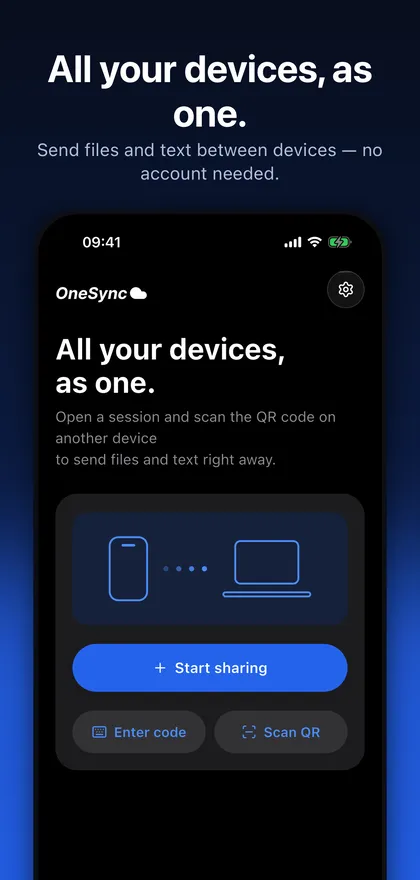
- You start a session on one device, then other devices join by scanning a QR code or entering a code. Every device in the session receives what you send.
iPhone to Android file transfer is awkward because AirDrop does not cross platforms and cables need the right adapter. OneSync works through a temporary session instead. Open the app on one device and start a session to get a QR code and a short session code. On another device, scan the QR code or type the code. On a computer you do not install anything: open the OneSync web client in a browser, such as onesync.setlog.net, and join the same way.
Once devices are in the session, you can send files and text to all of them. You can share straight from other apps through the share sheet, copy a link or a sentence on one device and receive it on another, and join with a QR code, a code or a link. Large file transfers can resume after a network interruption.
OneSync is a temporary transfer channel, not a storage locker. Transfers go through our server over encrypted connections (HTTPS/TLS), and files and text are deleted from the server after the session ends. That makes it suitable for quick hand-offs on a shared PC or between family members' phones, and unsuitable for highly sensitive files.
What it does
Transfer files between iPhone and Android
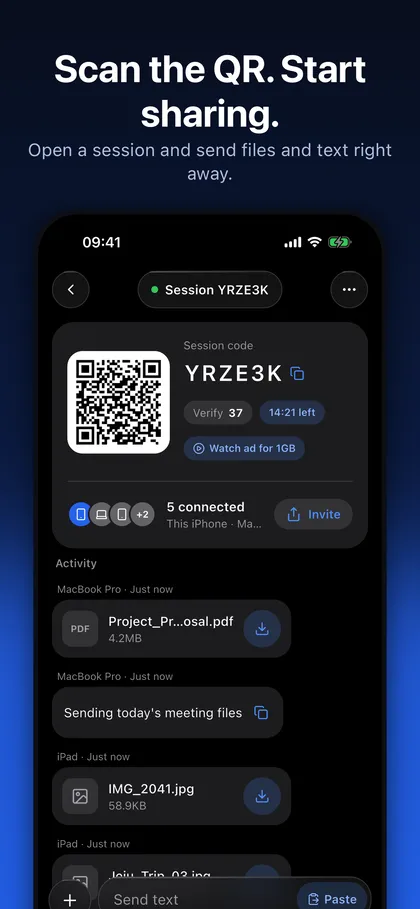
Start a session on an iPhone or an Android phone and let the other device join with the QR code or session code. Files you send arrive on every device in the session. Each session also shows a short verification number so you can confirm you joined the right one.
A web client for any computer
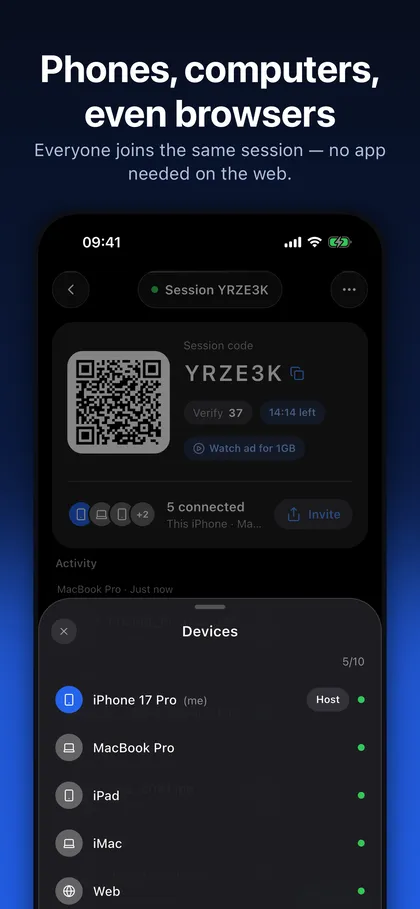
Computers join through a browser, so there is nothing to install on a Windows PC, Mac or Linux machine. The session screen shows the PC web address, and you can copy it. The QR scan screen explains how to show the QR code on your PC.
Send text and links, not only files
Share a copied sentence or link to every device in the session. Everything you send is listed in the session activity, so you can download or copy it on each device.
Share from other apps and join with a link
Use the share sheet to send a photo or document from another app straight into your session. Join by QR code, by entering a code, or by opening a link.
No account, and sessions clean up after themselves
There is no sign-up and no login. When a session ends, the files and text in it are deleted from the server. Without Pro, sessions run up to 1 hour, files can be up to 200 MB each and up to 2 devices can join.
Screenshots
Requirements and details
| Platforms | iPhone, iPad, Android, Web |
|---|---|
| Requires | iOS 15+ |
| Platforms | iPhone and iPad (iOS 15 or later), Android, and any computer through a web browser |
| Joining | QR code, session code or link, with a short verification number; no sign-up or login |
| What you can send | Files and text; share from other apps through the share sheet |
| Without Pro | Files up to 200 MB each, sessions up to 1 hour, up to 2 devices, with ads; watch an ad in a session to send files up to 1 GB each in that session only |
| With Pro | Files up to 5 GB each, sessions up to 24 hours, up to 10 devices, no ads |
| Pro plans | Auto-renewing monthly or yearly subscription with a 7-day trial for new subscribers; applies to the platform where you buy it |
| Security | Encrypted connections (HTTPS/TLS) through our server; files and text deleted from the server after the session ends |
| Large files | Transfers can resume after a network interruption |
Limits, stated honestly
- OneSync does not use end-to-end encryption, so do not use it for highly sensitive files. Transfers use HTTPS/TLS and pass through our server.
- It is a temporary channel. Sessions end, and files and text are deleted from the server afterwards, so it does not keep files for months.
- Without Pro, a session holds 2 devices, lasts up to 1 hour, takes files up to 200 MB each and shows ads. Larger files, longer sessions and more devices need Pro.
- Computers use the web client in a browser; the store listing describes no separate app for Windows, Mac or Linux. A Pro subscription applies to the platform where you buy it.
- Both people need a connection to the internet, because files go through our server rather than directly between devices.
Frequently asked questions
How do I transfer files from iPhone to Android?
Open OneSync on one device and start a session to get a QR code and a code. Scan the QR code or enter the code on the other device, then send files and text. Every device in the session receives them.
Can I send files to a PC without installing anything?
Yes. Open the OneSync web client in any browser, for example onesync.setlog.net, and join the session with the QR code or the code. The session screen in the app shows the PC web address.
Do I need an account or a cable?
No. There is no sign-up, login, cable or pairing. A session is created on one device and joined by QR code, code or link.
How big can a file be, and how long does a session last?
Without Pro, files can be up to 200 MB each and sessions last up to 1 hour. You can watch an ad to send files up to 1 GB each in that session. Pro allows files up to 5 GB each and sessions up to 24 hours.
Is OneSync secure and what happens to my files?
Transfers use encrypted connections (HTTPS/TLS), and files and text are deleted from the server after the session ends. OneSync does not use end-to-end encryption, so avoid sharing highly sensitive files.
How many devices can join one session?
Up to 2 devices without Pro and up to 10 with Pro.