
Open RAR, 7z and ZIP files on Mac and iPhone
Unzip, browse and extract archives on your device, and repair garbled file names.
Languages: English · 한국어 · Deutsch · 日本語
At a glance
- Zipda is a light archive app for Mac, iPhone and iPad. It opens, browses and previews ZIP, RAR, 7z and TAR archives, and unzips ZIP and TAR in one step.
- It is for anyone who receives archives from Windows users or from older tools: RAR attachments, 7z downloads, password-protected ZIPs, huge or split sets, and ZIPs whose file names arrive as gibberish.
- What sets it apart is the file name work. It detects the original encoding on your device and shows the likely real name, and a repair tool renames a whole folder back in one pass.
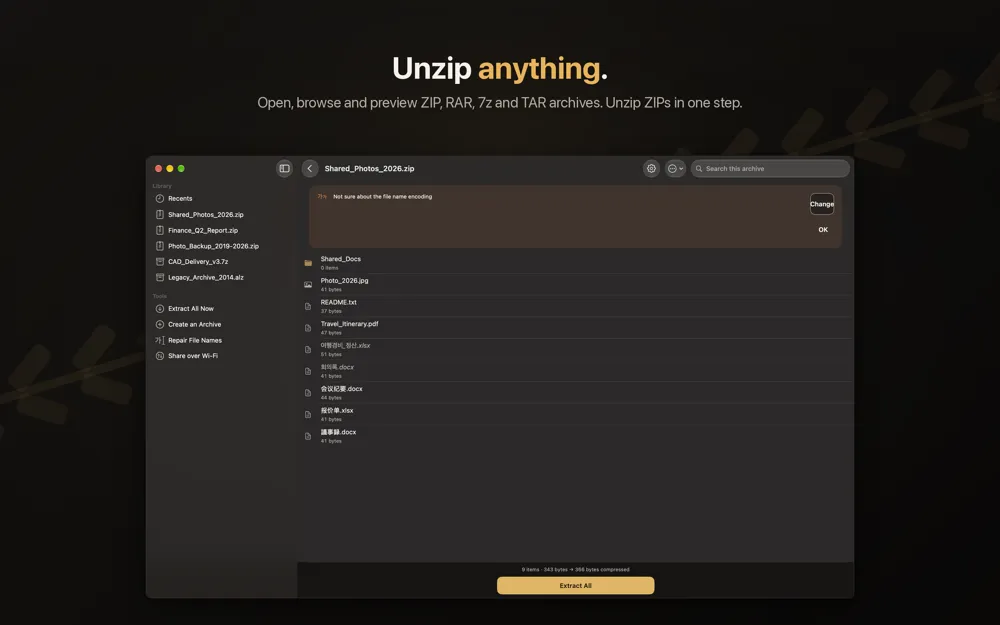
If you have ever searched for how to unzip a file on Mac, the built-in Archive Utility handles plain ZIP files well. The trouble starts with everything else. A RAR file from a download site, a 7z from a colleague, a ZIP made on Korean or Japanese Windows whose names turn into symbols, or a download that stopped halfway: these are the cases Zipda was built for. You can open any of those archives, look inside and preview what is there before extracting anything.
Everything runs on your own device. There is no account, no analytics and no advertising SDK, and the app makes no network requests of its own, so the files you unpack never leave your Mac or iPhone. Extraction streams large archives to storage instead of loading them into memory, which is how multi-gigabyte ZIP64 files and sets with tens of thousands of entries stay manageable.
Opening, browsing and previewing any archive, and everyday ZIP and TAR extraction, work without Pro. Extracting RAR, 7z, ALZ and LZH, split sets, password-protected archives and original CJK names is part of the optional Zipda Pro unlock, which is available on iPhone, iPad and Mac with the same features.
What it does
Open RAR and 7z on Mac
Zipda extracts RAR, 7z, LZH and ALZ in addition to ZIP and the TAR family (.tar, .tar.gz, .tar.bz2, .tar.xz). You can browse and preview the contents of a RAR or 7z first and then pull out just the one file you need, or extract everything to a folder you choose. Extracting RAR, 7z, ALZ and LZH is a Pro feature.
Fix garbled file names after unzipping
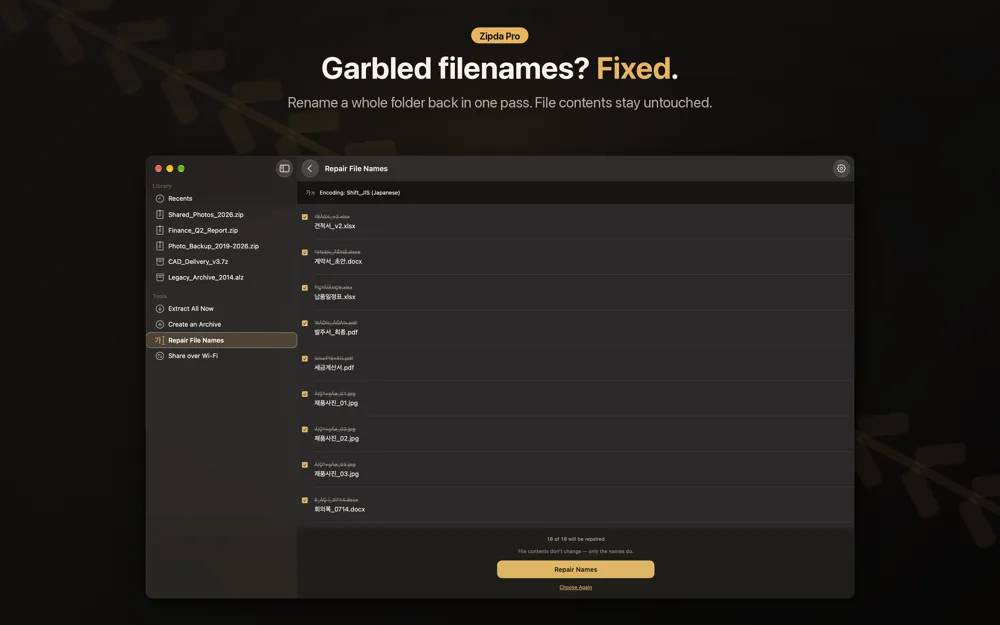
Archives made on Windows often store names in a regional code page instead of Unicode, so they show up as text like the string ÇѱÛ.txt. Zipda works out the encoding on your device (CP949/EUC-KR, Shift_JIS, GB18030, Big5 and more), shows the most likely name and tells you which encoding it chose with a banner. One tap overrides it. If you already extracted a folder with mangled names, the Repair File Names tool shows a before-and-after preview and renames the whole folder without touching file contents.
Password-protected ZIP files
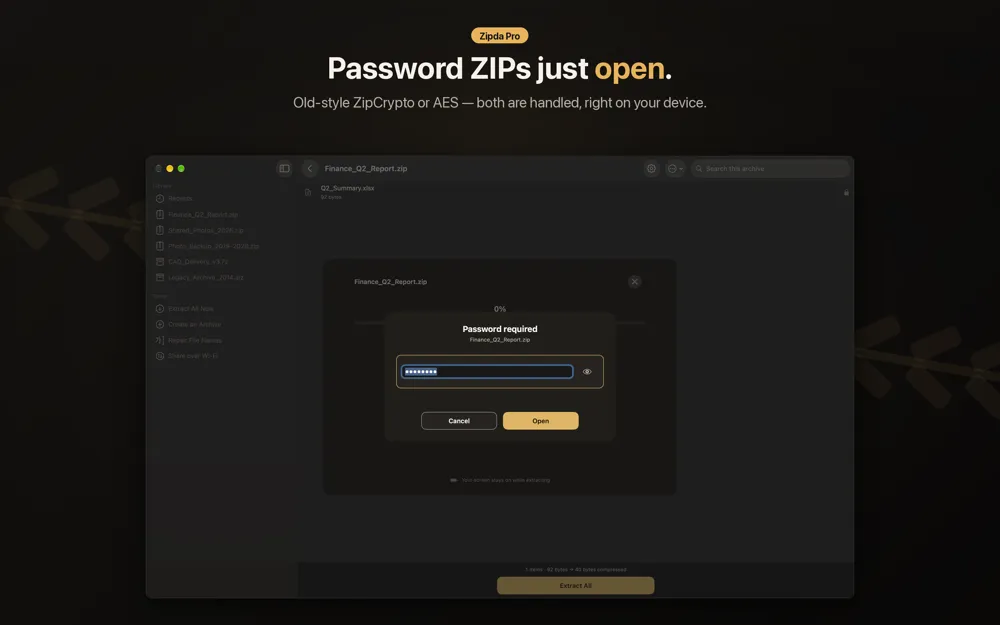
A password-protected ZIP opens whether it uses the older ZipCrypto method or AES. Zipda asks for the password, and the check happens on your device. Opening password-protected archives is part of Pro.
Big, split and damaged archives
Zip64 archives past 4 GB, sets split across several parts and archives with tens of thousands of entries are streamed rather than held in memory. For a split set, pick the first part and Zipda finds the rest. If a download was cut off or a sector is bad, Zipda extracts every entry it can still read and then lists exactly which ones it skipped and why. Cancel stops at once and cleans up half-written files.
Create ZIP files on Mac and iPhone
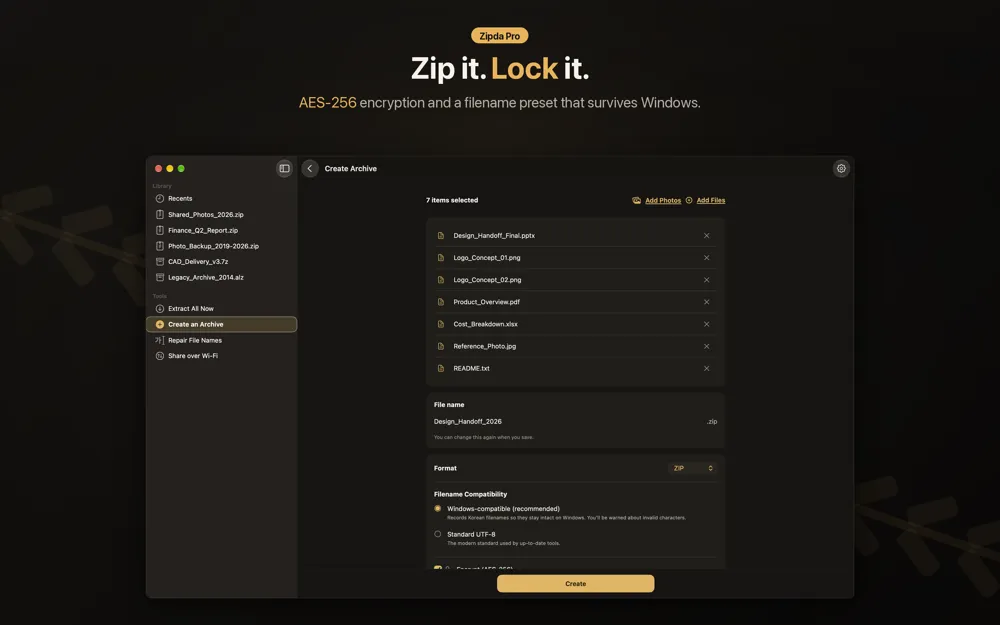
Select files, photos or videos and compress them into a ZIP, including from the share sheet on iPhone. A Windows-compatible filename preset keeps non-English names intact for the person who opens the file on a PC, and ZIP can be encrypted with AES-256 as a Pro feature. Creating 7z, password-protected and split archives is part of Pro.
Screenshots
Requirements and details
| Platforms | iPhone, iPad, macOS |
|---|---|
| Requires | iOS 16.1 / macOS 14+ |
| Platforms | Mac, iPhone and iPad (one App Store listing) |
| Requirements | macOS 14 or later; iOS 16.1 or later |
| Extract | .zip, .tar, .tar.gz, .tar.bz2, .tar.xz; with Pro also .rar, .7z, .lzh, .alz |
| Create | .zip and .tar without a password; AES-256 encrypted ZIP, 7z, password-protected and split archives with Pro |
| Passwords | ZIP with ZipCrypto or AES (Pro) |
| Filename encodings | CP949/EUC-KR, Shift_JIS, GB18030, Big5 and more, detected on the device |
| Privacy | No account, no analytics, no advertising SDKs; App Store label Data Not Collected |
| Languages | 12, switchable inside the app |
Limits, stated honestly
- Zipda cannot create RAR files. RAR creation is not possible for third-party apps, so it only extracts RAR. LZH is extract-only as well.
- EGG files are not supported.
- A split set needs every part. If one part is missing the set cannot be extracted.
- Encoding detection is an estimate. Very short Japanese file names can be mistaken for Korean, so switch the encoding by hand if a result looks wrong.
- Extracting RAR, 7z, ALZ and LZH, split sets and password-protected archives requires the optional Pro unlock.
Frequently asked questions
How do I open a RAR file on a Mac?
Install Zipda, then drag the RAR onto the app window (on iPhone, share it to Zipda from Mail or the Files app). You can browse and preview the contents first. Extracting a RAR archive is part of the optional Zipda Pro unlock.
How do I unzip a file on a Mac?
Double-clicking a ZIP uses the built-in Archive Utility. With Zipda you can also browse the archive, preview a single file, choose where the files go and unzip in one step, which helps when names are garbled or the archive is very large.
Can Zipda open 7z files on Mac?
Yes. Zipda opens, browses and previews 7z archives, and extracting 7z is included in Zipda Pro.
Why are my file names garbled after unzipping?
The archive stored names in a regional code page instead of Unicode. Zipda detects the likely encoding on your device, and you can change it with one tap. For folders you already extracted, use the Repair File Names tool.
Can I create a RAR file with Zipda?
No. Zipda creates plain ZIP archives, and with Pro also AES-256 encrypted ZIP and 7z archives. For sending files to others, ZIP is the safest choice.
Are my files uploaded anywhere?
No. Everything is processed on your device. The app has no account, no analytics and no advertising SDKs.